Book Categories:

Wait, don't go!
Before you leave, we have a special offer just for you!
Get 20% off your next purchase.

Book Categories:






Before you leave, we have a special offer just for you!
Get 20% off your next purchase.

Share:
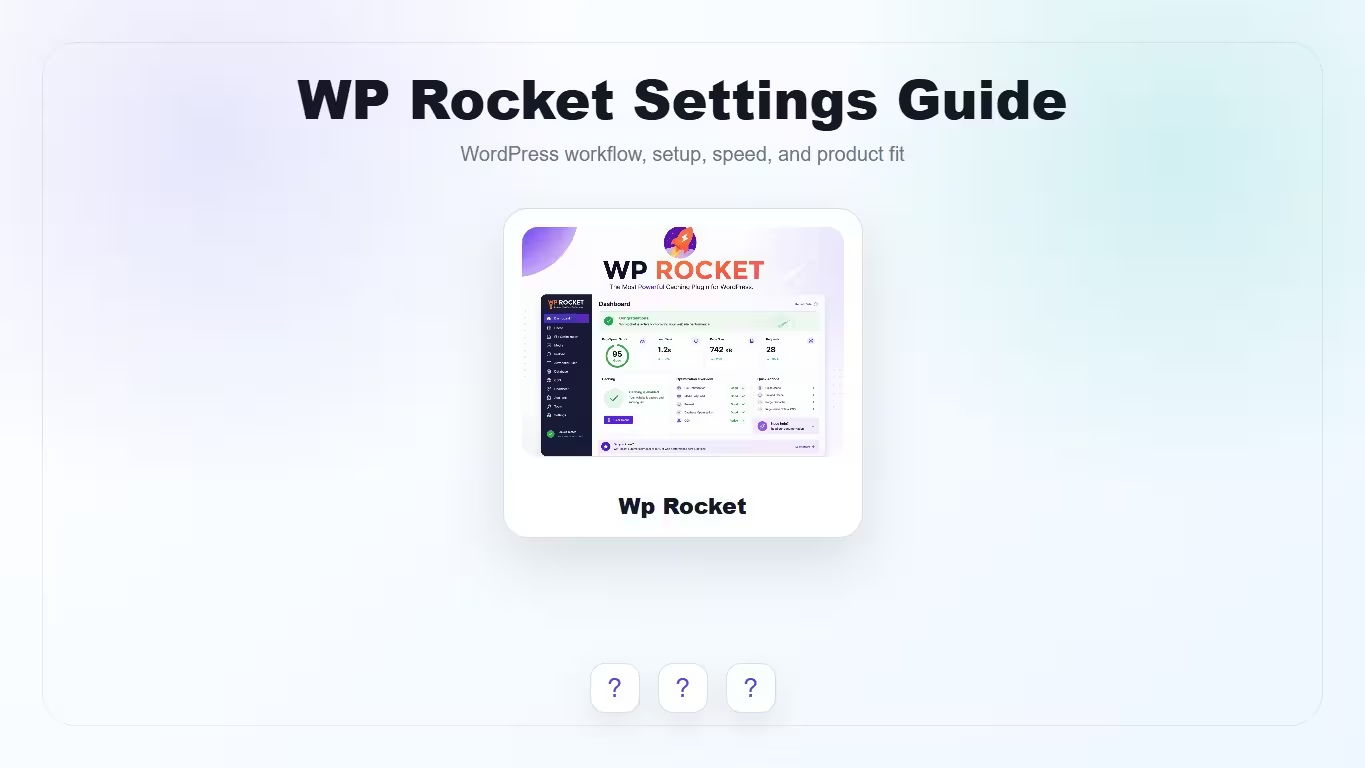
WP Rocket settings are powerful because they affect caching, CSS, JavaScript, images, preload, and database cleanup. The safest setup is gradual: enable a small group, test key templates, then move to advanced optimization.
| WP Rocket setting | Recommended start | Test before leaving on |
|---|---|---|
| Page cache | Enable for normal public pages | Logged-in behavior and dynamic pages |
| Preload | Enable after URLs are stable | Server load and cache generation |
| LazyLoad | Enable images and iframes | Hero images, sliders, product galleries |
| Remove Unused CSS | Enable after layout testing | Header, menus, page builder sections |
| Delay JavaScript | Enable carefully | Forms, checkout, analytics, sliders |
Preload matters because it generates cache files before visitors request pages. WP Rocket documentation also connects preload with other optimizations, so it should be tested as part of the full performance workflow.
Remove Unused CSS can reduce page size and improve Core Web Vitals, but it can also expose theme or builder quirks. Test important templates before assuming it is safe everywhere.
Delay JavaScript can help with unused JavaScript and main-thread work, but interactive components may need exclusions. Test menus, forms, sliders, cart, checkout, and tracking scripts.
LazyLoad is usually safe, but product galleries, hero images, video embeds, and above-the-fold visuals deserve extra checking. Do not lazy load the image that is likely to be the LCP element.
WooCommerce requires more testing than a blog. Cart, checkout, account pages, fragments, geolocation, currency switchers, and product variation behavior can all interact with cache.
Start with page cache, preload, and LazyLoad, then test CSS and JavaScript optimization separately.
It can be very useful, but it should be tested on important templates because dynamic CSS or builder layouts may need adjustments.
Yes, but carefully. Check menus, forms, sliders, analytics, ads, cart, and checkout before leaving it active.
Yes, but WooCommerce pages need testing because cart and checkout behavior can be dynamic.
No. It can reduce front-end and cache overhead, but server response time, database health, and hosting quality still matter.