WordPress Themes
275 Products
WordPress Plugins
500 Products

Shopify
0 Products

PHP Scripts
0 Products

Opencart
0 Products

Magento
0 Products

Share:
Speeding up WooCommerce is not only about installing a cache plugin. Stores are dynamic: product filters, cart fragments, checkout, product images, database queries, and third-party scripts all affect performance.
| Priority | What to check | Useful tool |
|---|---|---|
| Hosting and PHP | TTFB, PHP workers, object cache support | Host/server settings |
| Page cache | Catalog and product pages for logged-out users | WP Rocket or WP Fastest Cache |
| Images | Product image weight, thumbnails, lazy loading | Smush Pro or image workflow |
| Database | autoloaded options, Action Scheduler, product attributes | Database cleanup and object cache |
| Checkout | Payment scripts, cart fragments, dynamic pages | Manual testing |
Cache public catalog pages when possible, but exclude cart, checkout, account, and other dynamic flows. A cache plugin can help, but it must respect store behavior.
Product images are often the heaviest assets on a store. Compress originals, use correct thumbnail sizes, avoid oversized hero images, and check whether the first product image is hurting LCP.
Large catalogs can suffer from taxonomy, product meta, and scheduled action overhead. WooCommerce developer notes in 2026 also highlight object caching work, which reinforces the point: dynamic store performance often depends on database and object-cache behavior, not only front-end assets.
Payment gateways, analytics, popups, chat widgets, and marketing scripts can slow checkout. Delay or unload scripts carefully, but never break conversion tracking or payment steps.
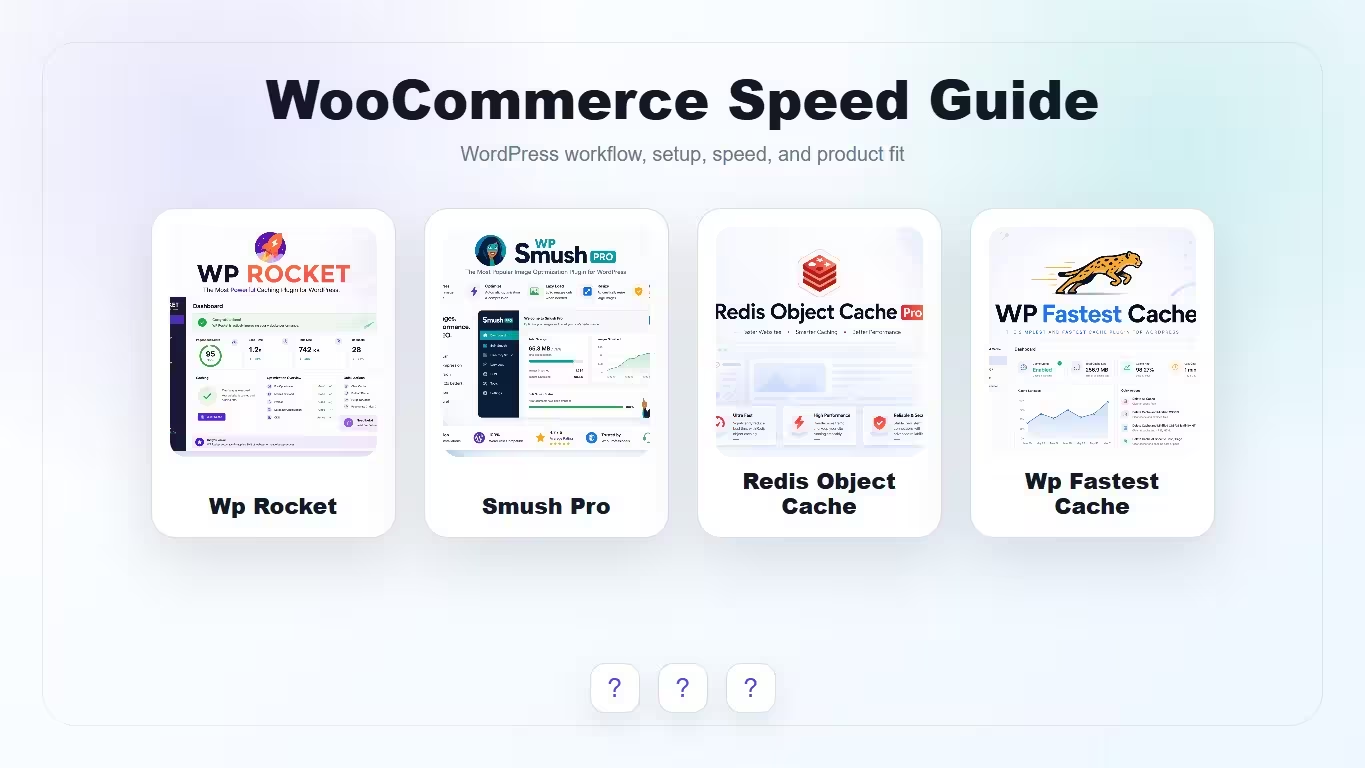
Scores show which job each tool is best suited for. They are not direct replacements for one another.
| Criteria | WP Rocket | WP Smush Pro Image Optimization | Redis Object Cache Pro WordPress | WP Fastest Cache WordPress |
|---|---|---|---|---|
| Catalog page cache | 9/10 | 6/10 | 4/10 | 8/10 |
| Image workflow | 5/10 | 9/10 | 3/10 | 4/10 |
| Database-heavy stores | 5/10 | 4/10 | 9/10 | 4/10 |
| Ease of setup | 8/10 | 7/10 | 6/10 | 8/10 |
Start with hosting, page cache for public pages, image optimization, and script cleanup. Then review database and object cache needs.
Checkout should not be cached like a normal public page. It is dynamic and needs careful exclusion and testing.
Yes. Oversized product images are one of the most common store performance problems, especially on mobile.
Redis object cache can help database-heavy stores, but it depends on hosting support and the actual bottleneck.
Avoid overlapping cache plugins. Use separate tools only when they solve different jobs, such as page cache, image compression, or object cache.